AI Button
AI buttons allow users to trigger AI-powered actions.
Usage
Do:
- Use to enable users to access AI-powered functions.
- Use to group AI actions related to one specific element or page.
Don't:
- Don't use where AI-powered functions add no value.
- Don't use for non-AI functions.
Best Practices
- Adhere to the rules for SAP Design System buttons.
- Use secondary action buttons by default.
- Use primary buttons only for the primary action on the page or panel.
- Only use leading icons.
- Only use the "AI" icon.
- Use concise button labels that clearly describe the action.
- Don't include "AI" in the button label (e.g. avoid "Create with AI" — use "Create" instead).
Variants
- Button — Use for a single AI action. The label and tooltip must clearly indicate AI.
- Dropdown — Use to offer multiple AI actions from a menu.
- Icon-only button — Use when space is limited or as an entry point for an AI-enhanced feature. Use a tooltip to indicate the feature.
- Icon-only dropdown — AI button with icon and dropdown menu.
Behavior
- Clicking the Generate AI button triggers content generation.
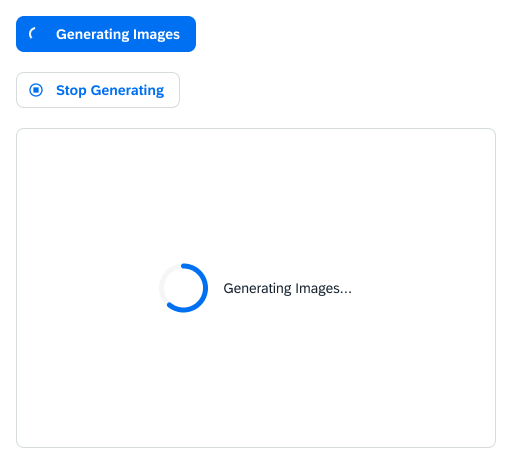
- During generation, the button changes appearance and function:
- Changes to a disabled "Generating" button with a loading spinner if stopping is not possible.
- Or changes to "Stop Generating" with the
aborticon.
- Once generation is complete, the button changes to an AI button or AI dropdown button.
Button
Preview
Dropdown
Preview