AI Progress Indicator
Intro
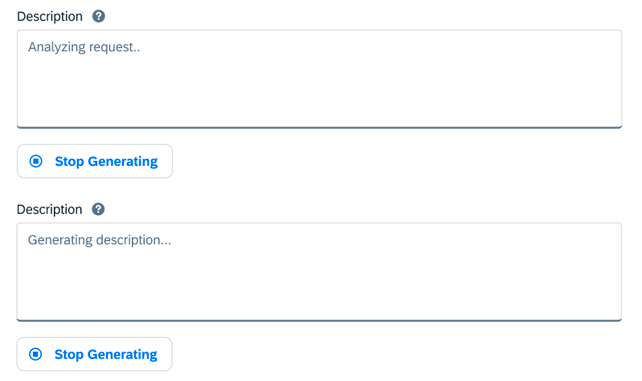
AI progress indicator provides information about the status of a user’s request while they wait for the content to be generated. The main goal of this pattern is to keep the user engaged and informed, manage their expectations, and show that the system is actively working.
This article discusses the usage of AI progress indicator in text-generation scenarios.
Usage
The AI progress indicator is highly recommended in situations where the time it takes for AI to complete the generation process is not specified.
Do:
- Show users the system is actively working.
- Inform users of the status of their request.
- Provide real-time updates on the progress of the AI task.
Don’t:
- Don’t use it for operations that take less than one second.
- Don’t use it when providing an estimate of how long the process will.
- Don’t apply in non-AI scenarios.
Behavior and Interaction
Once the user triggers the content generation, the AI progress indicator appears inside the text area or rich text editor component. Its state changes to an information value state that persists until the generation is completed or stopped by the user.
Placement
For seamless integration, the AI progress indicator should be positioned within the text area. The text message should be prominently displayed instead of the placeholder text.
Timing and Duration
Display the AI progress indicator on the screen one second after the generation process is triggered and ensure it remains visible for at least 500ms to avoid flickering.
Responsible AI
Users should understand what the AI is doing and why it’s taking time to output. To ensure clear and transparent communication about the AI processes being performed, the AI Experience team will be improving the AI progress indicator pattern.
<div class="e-field">
  <label class="e-field__label" for="textarea1">
    Textarea Label
  </label>
  <textarea class="e-input e-input-textarea" id="textarea1" type="text" icon="ai" placeholder="Analyzing request..." ></textarea>
</div>

<button class="e-btn">
  <e-icon icon="e-abort"></e-icon>
  Stop Generating
</button>
<div class="e-field">
<label class="e-field__label" for="textarea1">
Textarea Label
</label>
<textarea class="e-input e-input-textarea" id="textarea1" type="text" icon="ai" placeholder="Generating Text..." ></textarea>
</div>
<button class="e-btn">
<e-icon icon="e-abort"></e-icon>
Stop Generating
</button><div class="e-field">
<label class="e-field__label" for="textarea1">
Textarea Label
</label>
<textarea class="e-input e-input-textarea" id="textarea1" type="text">This is the AI-generated text!</textarea>
<p class="e-field__message">
<span class="text-color-faint">Created with AI. Consider verifying results.</span>
</p>
</div>
<e-dropdown data-markup-content="Generate Text" data-markup-class="e-btn e-btn-dropdown">
<div class="e-dropdown__content">
<a class="e-dropdown__item" href="#0">
Regenerate
</a>
<a class="e-dropdown__item" href="#0">
Rewrite
</a>
<a class="e-dropdown__item" href="#0">
Add Emoji
</a>
<a class="e-dropdown__item" href="#0">
Adjust Length
</a>
</div>
</e-dropdown>