AI Prompt Settings
Intro
Prompt Settings provide structured input Uls to guide the user in instructing the generative Al model on the desired output. They are helpful when users want to specify certain attributes, styles, or parameters for the generated content.
Prompt Settings offer control and precision in generating output that aligns with user preferences. All the provided information is combined into a processable prompt in the back end, so users only need to select the desired option.
Usage
Do:
- Users are known to use the generative AI feature for a limited set of use cases or queries.
- The system can assist with a specific and limited number of actions.
- Users have little to no experience with writing prompts.
- Users need to customize and personalize inputs for a more flexible experience.
- You need to ensure or maintain a constant and predictable outcome.
- Users need more flexibility in directing the output of the AI model.
Don’t:
- Users lack experience in the subject matter.
- Repetitive or common actions are involved in a workflow (consider quick prompts instead).
- The use case requires users to perform only one or a few specific actions (use quick prompts instead).
Variants
Within a Dialog
Great for usage of simpler prompt settings experiences. Avoid stacking dialog over dialog.
When to Use:
- The guided prompt use case is more complex.
- There is limited horizontal space.
- There is already a very high information density on the screen.
When Not to Use:
- The dialog has too many input options. Use a separate page instead.
On a Separate Page
Great for usage of more complex guided prompt experiences.
When to Use:
- The prompt could have more settings, the use case is more complex.
- There is already a very high information density on the screen.
When Not to Use:
- The dialog has only very few input options. Use a separate screen instead.
- The separate page is too disruptive for your use case. Consider using the dialog instead.
Handling Errors
If errors are encountered during or as a result of the prompt application, use the guidelines for handling messages.
Recommendations
Example Scenario: Text Composition
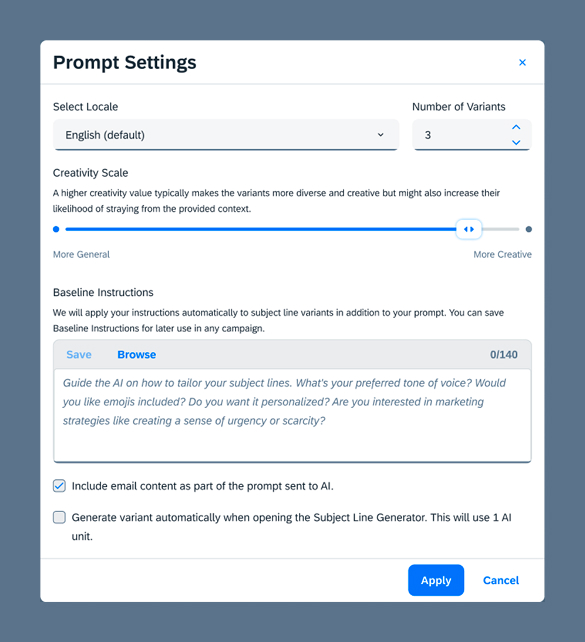
One of the most common scenarios where guided prompts can be leveraged is text composition. Since the guided prompt pattern reuses existing components, once the choice of components has been made, they follow the guidelines specific to the chosen component.
The following are some examples of prompt parameters that could be used in the context of text composition.
- Language/Locale: Select control used to provide language options
- Creativity: Slider
- Number of Variants: It controls how many variants are generated at once. Depending on the generated asset they could be:
- Number of Variants
- Number of Images
- Number of “Asset”
- Protected Terms: These words or phrases will not be translated or modified at all while generating the text content.
- Excluded Terms: These words or phrases will not be used while generating the text content.
- Specific Prompts: E.g in translation use cases, these language specific prompts provide a wider context for given language.
- Baseline Instructions: The Baseline instructions help to set a general tone for the generated content. Any kind of information can be added here, such as tone of voice, use of emojis, etc. Use the Toolbox component.
- Other Settings: Depending on the generated asset, the prompt settings could have other attributes to manage by the user. These are use case specific settings, but here is an example for image generation.
Terminology
Adhere to the default labels provided below for content generation scenarios if possible. We strongly recommend maintaining consistency and user familiarity by following the suggested wording. Only make changes to the default text if absolutely necessary for your specific use case. If you find yourself in this situation, please reach out to the AI Experience team for further guidance.
Best Practices
For actions not covered above, apply the following guidelines
- Use a verb in the imperative. Note: The grammatical form for actions can differ for other languages. For example, German action labels use the infinitive (Speichern, Abbrechen, Bearbeiten).
- Keep AI action labels as short as possible while prioritizing clarity for users.
- Use the same AI action labels consistently.
Prompt Engineering
As with quick prompts, you and your team must understand prompt engineering to guide users in crafting effective instructions for the AI system. For more information on helpful guidelines for prompt engineering focusing on guided prompts, see Designing Effective AI Prompts.
Responsible AI
To use prompt settings responsibly, first identify users’ needs and determine which tasks require the flexibility prompt settings provide when generating content.
Be transparent about the use of AI
Use prompt settings transparently, clearly indicating when users are engaging with AI features. Adhere to the provided pattern guideline, incorporating recommended components such as the AI icon and AI button, and use consistent terminology. Avoid any misleading language that may obscure the involvement of AI in the process.
Strive for fairness and clarity
Offer prompt settings that are inclusive and representative of diverse user preferences and perspectives. However, avoid giving more parameters than needed to reduce cognitive load and clutter in the UI. Base decisions on thorough user research.
Avoid prompt-infused bias
When employing prompt settings, your product team must carefully craft instructions for the AI system to prevent unintentional bias in the results. Poor prompt design, similar to biased training data, can perpetuate harm.