AI Prompt Input
Intro
The AI prompt input is a core UI element for interacting with generative AI systems. Its primary function is facilitating instructions for AI systems expressed in natural language: custom prompts written by a user. In addition to text, it may also support other input options, such as images, voice, or various file formats.
This component is part of a set of UI elements and UX patterns for instructing or prompting generative AI. For more information, see Designing Effective AI Prompts and the patterns for quick prompts and guided prompts.
Custom prompts are instructions the user writes from scratch in natural language for AI to follow when generating outputs. They allow users to explore a wide range of possibilities, collaborate with the AI, and generate diverse outputs far faster than humanly possible. They encourage creative freedom and can be valuable for writing, brainstorming, or generating ideas.
Usage
Do:
- Use the AI prompt input to facilitate custom prompts written by users to instruct AI systems.
- Use the AI prompt input when users need to provide additional context.
Don’t:
- Don’t use the AI prompt input and custom prompts for straightforward tasks. Avoid unnecessary complexity.
- Don’t use the AI prompt input if the AI supports a limited number of tasks. Use quick prompts instead.
- Don’t rely solely on the AI prompt input for tasks requiring highly technical or domain-specific knowledge that may be better suited for traditional input methods or specialized interfaces.
Best Practices
- Improve query input efficiency and accuracy by incorporating predictive text features like typeahead suggestions, auto-completion, and error correction.
- Leverage AI input fields to create personalized interactions that adapt and learn from user input over time.
- Avoid limiting input options to only one modality when users may benefit from utilizing multiple modalities.
Variants
-
AI Prompt Input with Label: Always provide a meaningful label for any input field. Labels are necessary to indicate the meaning of the input fields when the placeholders are no longer visible. To indicate that a particular field is mandatory, set the “Required” indicator for the label.
-
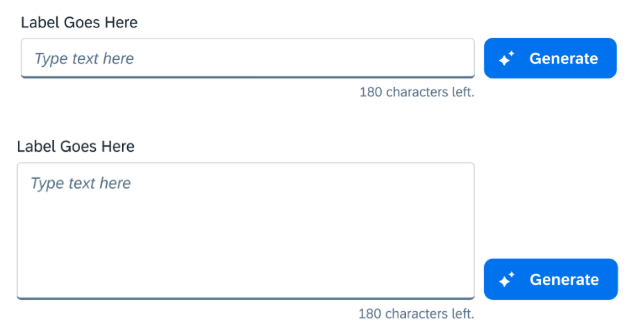
AI Prompt Input with Character Counter: If you have set a character limit without restricting text input, the counter indicates how many characters are left, or how many characters exceed the limit.
-
AI Prompt Input with Textbox: If the input for the prompt could be longer we could provide the text area for it. Textarea could heva automatic height to accommodate the text. But have a maximum height, according to the Textarea guidelines.
-
AI Prompt Input with AI unit counter: If the customer has bought a defined amounts of AI units, the counter indicates how many units are left, and in the tooltip help is provided on how to purchase more AI units/tokens.
Behavior and Interaction
This pattern primarily inherits its mouse and keyboard interaction specifications from the base components it utilizes.
-
Enabled: The AI Input field is currently active and allows user interaction. It can be empty, contain a placeholder text, or contain a value entered or selected by the user. The Submit action is disabled until a valid input is available.
-
Disabled: All interactive functions have been removed and the user is unable to interact with the input field. The field can’t be focused on or recognized by screen readers and doesn’t need to meet visual contrast requirements.
-
Suggestions and Autocomplete:
- Using suggestions and autocomplete is the quickest way for users to discover and select relevant input terms and values.
- The current typed term is always highlighted with bold text.
- Only the characters entered in the input field are highlighted, not the whole word.
- All relevant instances are highlighted, even if they occur in one line item.
- Clear: You can enable a Clear icon in the input field. It appears as soon as the input field has a value. Selecting the Clear icon removes the value from the field. If you use this option, make sure that the input field is wide enough to show the clear icon in addition to the value.
Terminology
The placeholder text should be specific enough to guide the user on what the AI can assist them with. The text should be concise, avoiding overly technical language, unless suitable for the target audience.
Do not repeat the label in the placeholder text.
For more information, see the UI text guidelines for placeholder text.
Responsible AI
Allowing users to create their prompts using the AI prompt input gives them more freedom, but it can also lead to issues, such as getting incorrect answers when the prompts are unclear or too specific, and there is a risk of perpetuating bias.
We will continue developing usage guidelines for this UI element and related custom prompt patterns (coming soon), including guiding the user in writing quality prompts and preventing bias. In the meantime, follow the guidelines below to get the most out of custom prompts and mitigate the risks.
Be transparent about the use of AI
Use the AI prompt input transparently: indicate that users are engaging with AI-powered features. Avoid any misleading language, like labels and placeholder text that may obscure the involvement of AI.
Mitigate bias in imperfect user prompts
Implement measures to detect and flag potentially biased prompts, such as algorithms that analyze the language, tone, and content of the prompt to identify any biases or stereotypes.
<div class="e-field">
  <label class="e-field__label" for="textarea1">
    Textarea Label
  </label>

  <div class="e-inputgroup">
    <input class="e-input e-inputgroup__item e-inputgroup__item-fluid e-inputgroup__item-first" type="text" placeholder="Type text here or generate with AI">

    <button class="e-btn">
      <e-icon icon="ai"></e-icon>
      Generate
    </button>
  </div>

  <span class="e-field__message">
    180 characters left.
  </span>

</div>
<div class="e-field">
<label class="e-field__label" for="textarea1">
Textarea Label
</label>
<div class="e-inputgroup">
<textarea class="e-input e-input-textarea" id="textarea1" type="text" placeholder="Type text here or generate with AI" ></textarea>
<button class="e-btn">
<e-icon icon="ai"></e-icon>
Generate
</button>
</div>
<span class="e-field__message">
180 characters left.
</span>
</div>